

Teachers do not always need a test, worksheet, or formal assignment to find out whether students understand a lesson. Sometimes, one well-chosen question can reveal exactly what the class needs next.
Live polls are a simple way to collect that information. They allow every student to answer at the same time, including students who may not feel comfortable raising their hands. The results can then help the teacher decide whether to continue, explain something again, or adjust the lesson.
When polls are added directly to a PowerPoint presentation, formative assessment becomes part of the lesson instead of a separate activity. Here are seven practical ways to use live PowerPoint polls in the classroom.
1. Start With a Prior-Knowledge Question
Before introducing a new subject, ask students what they already know about it.
For example, before a lesson about the solar system, you could ask:
Which planet is closest to the Sun?
- Venus
- Mercury
- Earth
- Mars
This gives students an easy way to participate from the beginning. It also gives you an immediate impression of their existing knowledge.
A prior-knowledge poll can be factual, but it can also ask students how familiar they are with a topic. This helps you choose the right starting point for the lesson.

2. Check Understanding After an Explanation
After explaining an important concept, add a quick multiple-choice question to the next slide.
Instead of asking, “Does everyone understand?”, ask students to apply what they have just learned. Their answers will give you much more useful information than a simple yes or no.
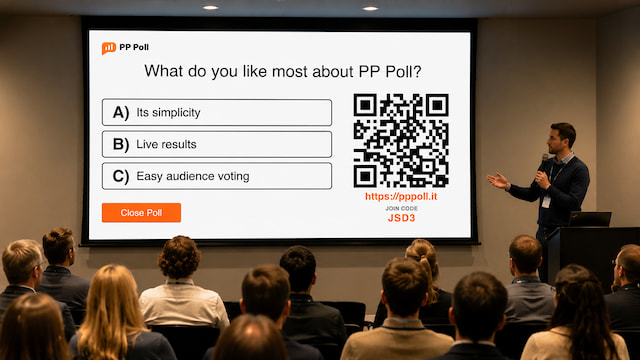
With a tool such as PP Poll, students can scan a QR code and vote using a phone, tablet, or laptop. The poll is created and presented from PowerPoint, so you do not have to switch between different applications during the lesson.
3. Identify Common Misconceptions
A good formative-assessment question should include answers that reflect common mistakes.
Suppose you are teaching fractions. You might ask:
Which fraction is the largest?
- 1/2
- 2/5
- 3/8
- 4/10
The incorrect options are useful because they show how students are thinking. When several students choose the same wrong answer, you have found a misconception that is worth discussing.
The poll results can become the starting point for a class conversation. Ask students to explain why an answer may appear correct and then work through the reasoning together.
4. Let Students Predict an Outcome
Predictions make students think before they receive the answer.
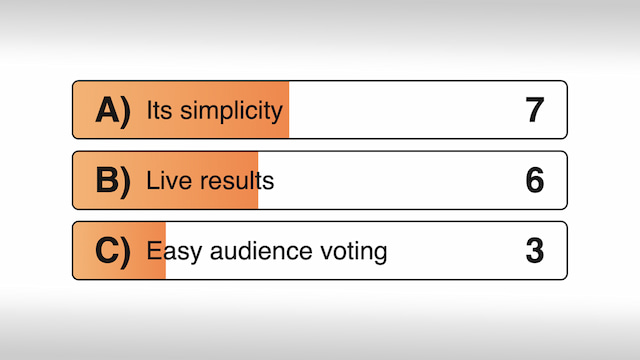
Before conducting an experiment, reading the next chapter, or showing a historical outcome, ask students what they expect to happen. You can display the results and return to them later.
Prediction polls work well in many subjects:
- What will happen when these two substances are combined?
- How will the main character respond?
- Which country do you think had the largest population?
- What will happen to the graph when this value increases?
Students become more invested in the answer because they have already made a choice.
5. Ask a Confidence Question
Correct answers are only one part of formative assessment. It is also useful to know how confident students feel.
At the end of an explanation, ask:
How confident are you that you could complete this task independently?
- Very confident
- Fairly confident
- I need more practice
- I need help
This gives students an opportunity to reflect on their own learning. It can also reveal a difference between performance and confidence. A student may answer correctly but still feel unsure, while another may feel confident despite choosing the wrong answer.
6. Use a Poll as an Exit Ticket
An exit ticket is a short activity completed at the end of a lesson. A live poll can serve the same purpose without requiring paper forms.
Ask one final question that represents the main learning objective. You could also ask students which part of the lesson they found most difficult.
Because the answers are collected immediately, you can use them when preparing the next lesson. When most students choose the correct answer, you may be ready to move forward. When the responses are divided, the topic may need another explanation.
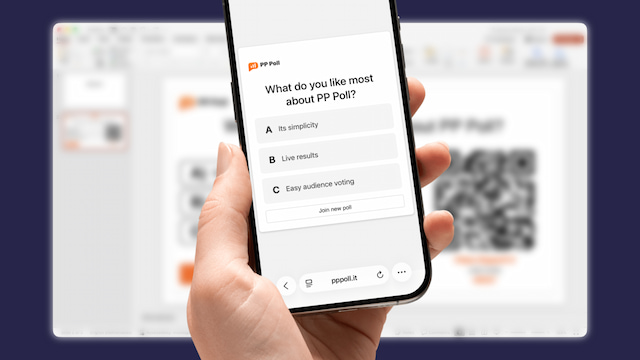
PP Poll lets teachers create polls directly inside PowerPoint. Students join through the voting page, while the results appear in the presentation. This makes it suitable for quick checks that should not interrupt the flow of a lesson.
7. Turn the Results Into a Discussion
A poll does not have to end when the results appear. The answers can become teaching material.
Ask students:
- Why do you think this answer received the most votes?
- Can someone explain the reasoning behind another option?
- What information would help us decide?
- Would anyone like to change their answer?
You can also hide the results until voting has finished. This prevents early answers from influencing students who have not voted yet.
Once the results are displayed, encourage students to focus on the reasoning rather than simply finding out which answer won.
Tips for Writing Effective Classroom Polls
Keep each question focused on one idea. Students should be able to understand the question quickly while looking at the presentation.
Use answer options that are clear and reasonably short. Avoid including one obviously silly answer, as this makes the question less useful for assessment.
It is also important to decide what you will do with the results. A poll is most valuable when the answers influence the next part of the lesson.
For example:
- Continue when most students understand the concept.
- Provide another example when the results are divided.
- Ask students to discuss their reasoning in pairs.
- Revisit the subject during the next lesson.
Making Every Student’s Thinking Visible
Traditional classroom questioning often gives teachers answers from only a small number of students. Live polling allows the whole class to respond.
That does not mean every lesson needs several polls. Even one carefully placed question can provide valuable information.
The main purpose is not to add more technology to the classroom. It is to make student thinking visible at the moment when the teacher can still respond to it.
By adding interactive questions to an existing presentation, teachers can make formative assessment a natural part of instruction. You can explore the features of PP Poll to see how live voting and results can be incorporated into PowerPoint lessons.
